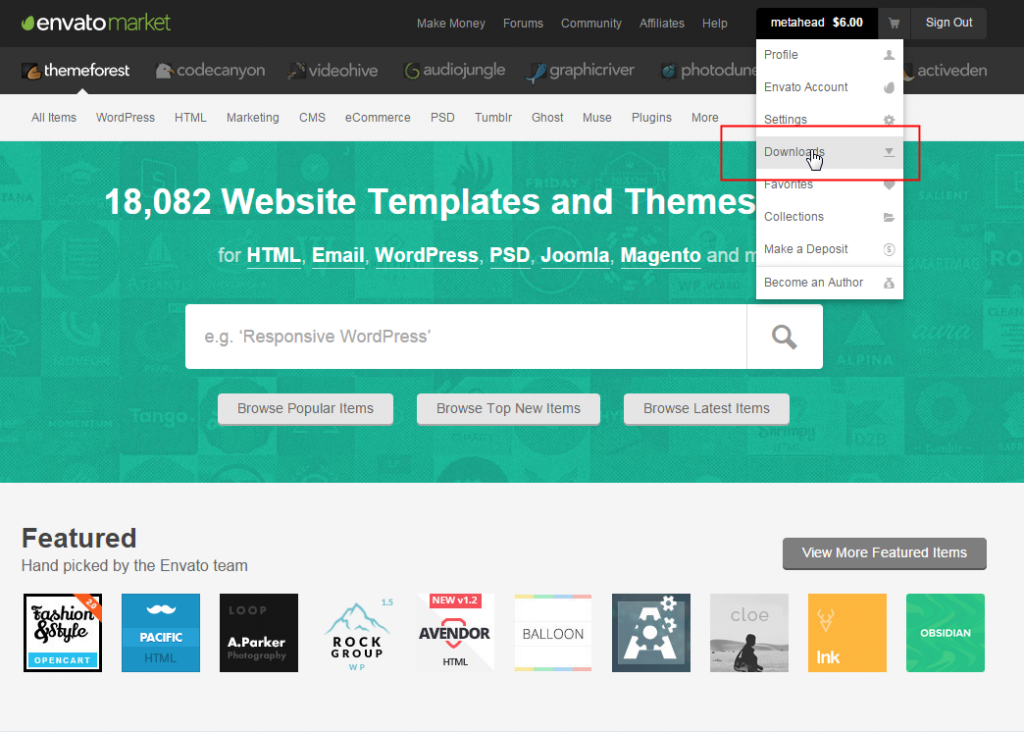
November 2026 updateThis post is from March 2015. The steps still work, with one change: on your Downloads page, the Download button next to an item now offers a License Certificate and Purchase Code option. A reply on Envato's community forum points ThemeForest buyers to themeforest.net/downloads, and your purchase code is listed in the document that downloads.
Some of the premium WordPress themes on ThemeForest require that you enter a valid license code before you can use them. If you can’t seem to locate your ThemeForest license code, follow these steps to get it.
- Go to www.themeforest.net.
- In the upper-right corner of the page, click Sign In.
- Enter your user name and password, and then click Sign In.
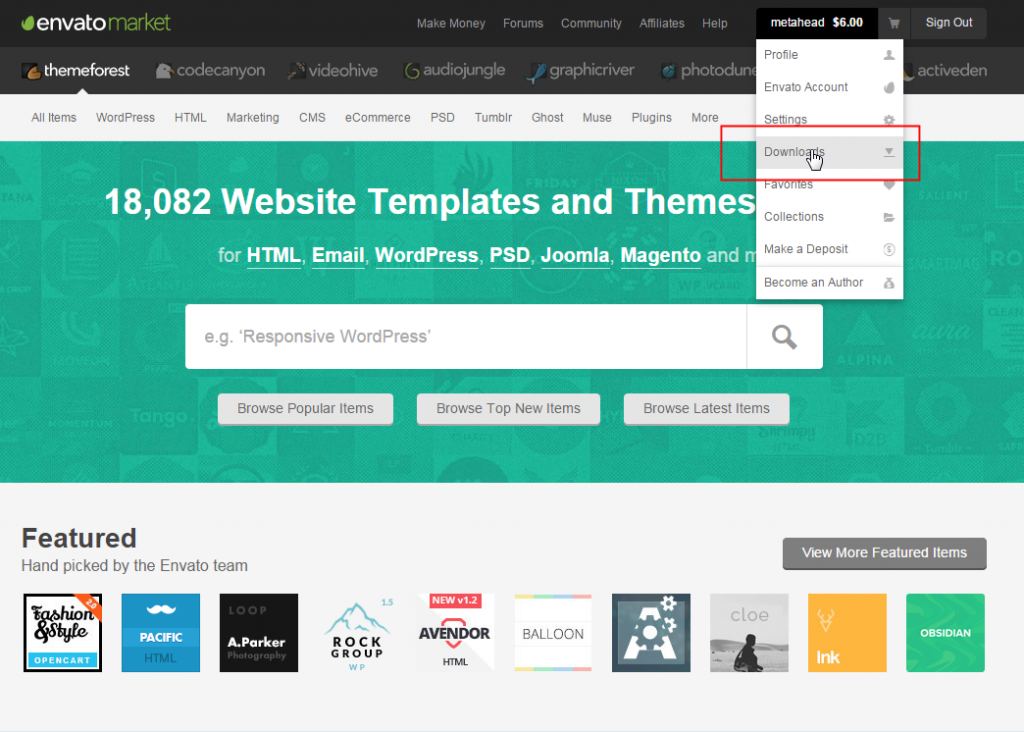
- Hover your mouse pointer over your ThemeForest user name, and then click Downloads.
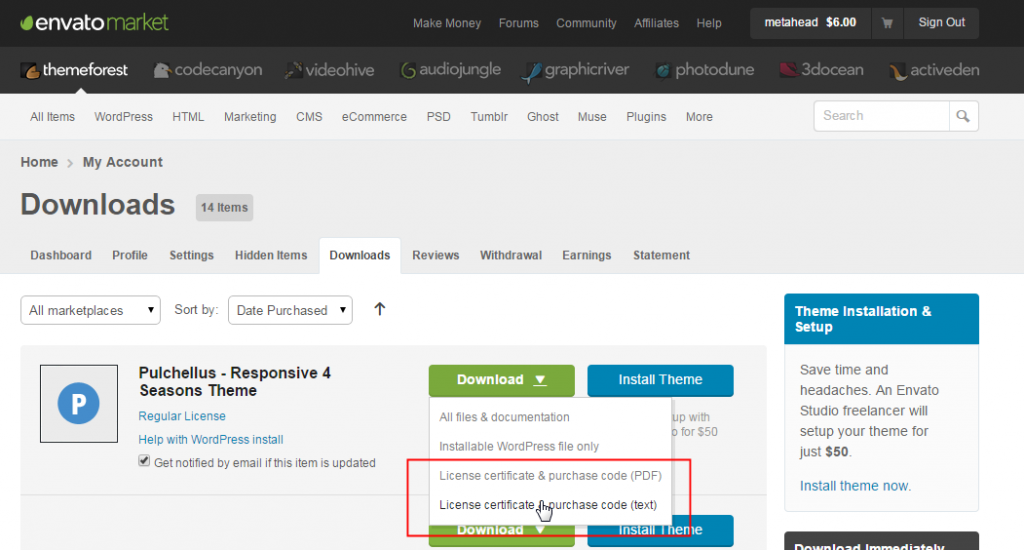
- Locate the WordPress theme for which you want to obtain the license code.
- Click the Download button for that theme, and then click one of the following links (you can click either):
- License certificate & purchase code (PDF)
- License certificate & purchase code (text)
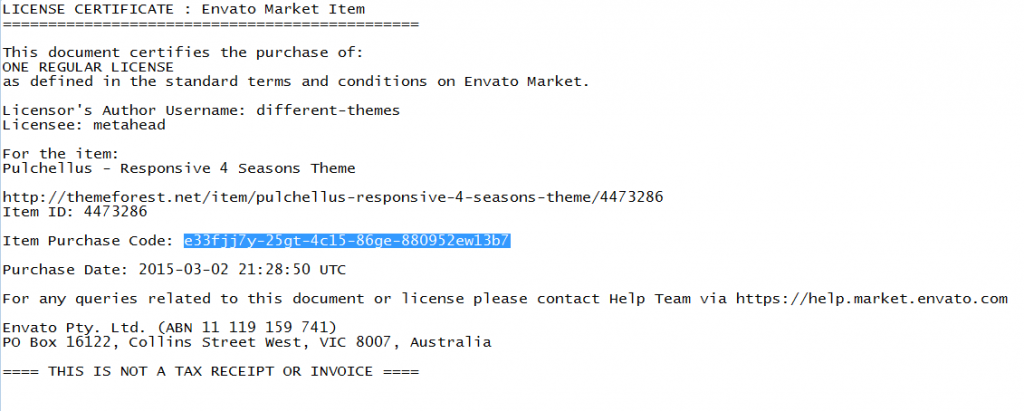
- Open the file (either PDF or text) that you downloaded.
- Look for the line that says, “Item Purchase Code.” The series of numbers and letters that appear after “Item Purchase Code” is your ThemeForest license code.
- Copy the license code, and then paste it into the license code field of the WordPress theme that requires it.
You’re all set. Enjoy your beautiful WordPress theme from ThemeForest!